AI integration through MCP
Let your AI use your browser, through MCP
Lunascape speaks MCP. Connect Claude Code, Claude Desktop, Cursor or VS Code, and the AI can read and operate the browser you already use — your tabs, your sign-ins, your bookmarks. No extension to add, no debugging port to open.
No extension, no debugging port, no second browser
The usual ways to let an AI drive a browser are add-ons: an extension installed into Chrome, Chrome started with a debugging flag, or a second browser launched just for the AI. Each is one more thing to set up and keep working.
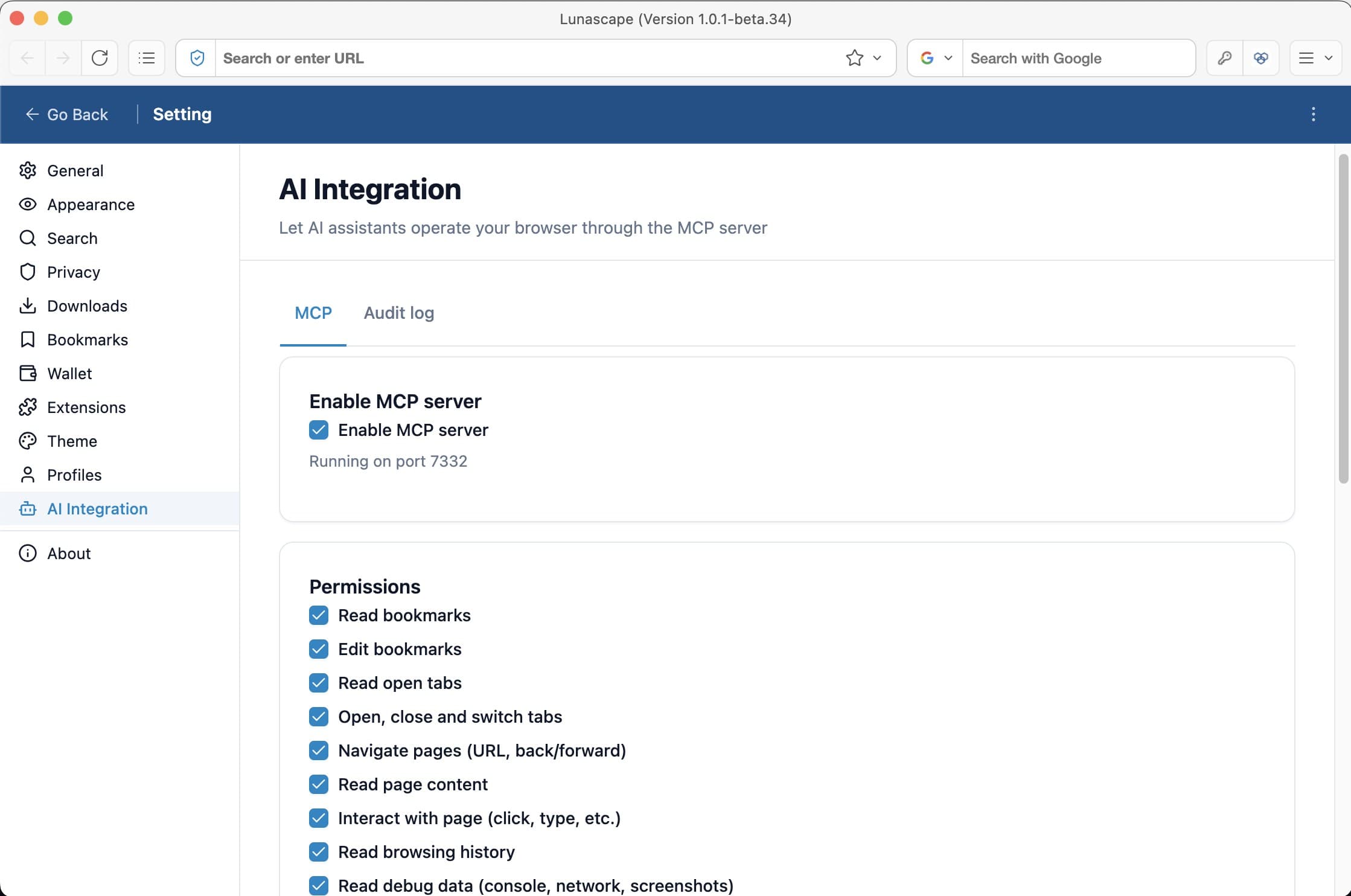
In Lunascape the MCP server is part of the browser. Switch it on in Settings, copy the line for your AI client, and it connects.
And because it is the browser you use every day, the AI works in your tabs with your sign-ins — not in a fresh window where you are signed out of everything.
What the AI can do
50 tools, in five groups. Every one needs a permission you grant, and none is granted until you grant it.
Manage tabs
List, open, close and switch tabs, go to an address, and go back, forward or reload.
Read and act on pages
Read a page's text and links, click, type, fill in forms, choose options and scroll.
Organize bookmarks
Search, add, move and rename bookmarks, and find duplicates. The whole tree is backed up before any change.
Search history and downloads
Search your browsing history, and list and read the files you downloaded.
Debug your site
Take screenshots and read a page's console and network requests — for developers checking their own site.
Works with the AI you already use
Settings has a ready-to-copy line for each of these. Any other client that speaks MCP over HTTP connects the same way, with the generic JSON.
- Claude Code
- Claude Desktop
- Cursor
- VS Code
- Any MCP client
You decide what it may touch
- Off until you switch it on.
- Reachable only from your own computer: it listens on 127.0.0.1, and every request needs an access token.
- Permissions are granted one by one — reading bookmarks is separate from editing them, reading a page separate from clicking on it.
- An audit log records every tool the AI called, with what it asked for and what came back.
- Opening a downloaded file asks you every time.
Set up in three steps
- Open Settings > AI Integration and switch on “Enable MCP server”.
- Choose which permissions the AI gets.
- Under Setup, pick your AI client, copy the line and add it there.
How it compares
| Approach | What you set up | Whose sign-ins the AI sees |
|---|---|---|
| Browser extension | Install an extension into Chrome | Your Chrome profile |
| Remote debugging port | Start Chrome with a debugging flag | The profile Chrome was started with for debugging |
| Separate automation browser | Launch a second browser for the AI | Its own profile, signed out until you sign in there |
| Lunascape | Switch it on in Settings — nothing to install | Your everyday browser, signed in as you |
Frequently asked questions
- Is it free?
- Yes. Lunascape, MCP server included, is free, and no account is needed. The AI client you connect is separate and is priced by its own provider.
- Which AI can I use?
- Any client that speaks MCP over HTTP. Settings has a ready-to-copy line for Claude Code, Claude Desktop, Cursor and VS Code, and a generic JSON for the rest.
- Can the AI do something I did not allow?
- No. It can use only the permissions you granted, one by one, and none are granted at first. Every tool call is recorded in the audit log, and opening a downloaded file asks you each time.
- Is anything sent off my computer?
- The MCP server accepts connections only from your own computer. What your AI client then does with what it reads is up to that client — usually it is sent to the AI service to produce a reply. While a page you would rather not share is open, switch the server off or do not grant reading page content.
- Which platforms have it?
- Windows and Mac. The MCP server is part of the desktop browser; the iPhone and Android versions do not have it.
Give your AI a browser
Free for Windows and Mac. Switch on MCP in Settings whenever you are ready.
Download for free